Your ChurchCRM, Your Way: Dark Mode, Accent Colors, and API Tokens
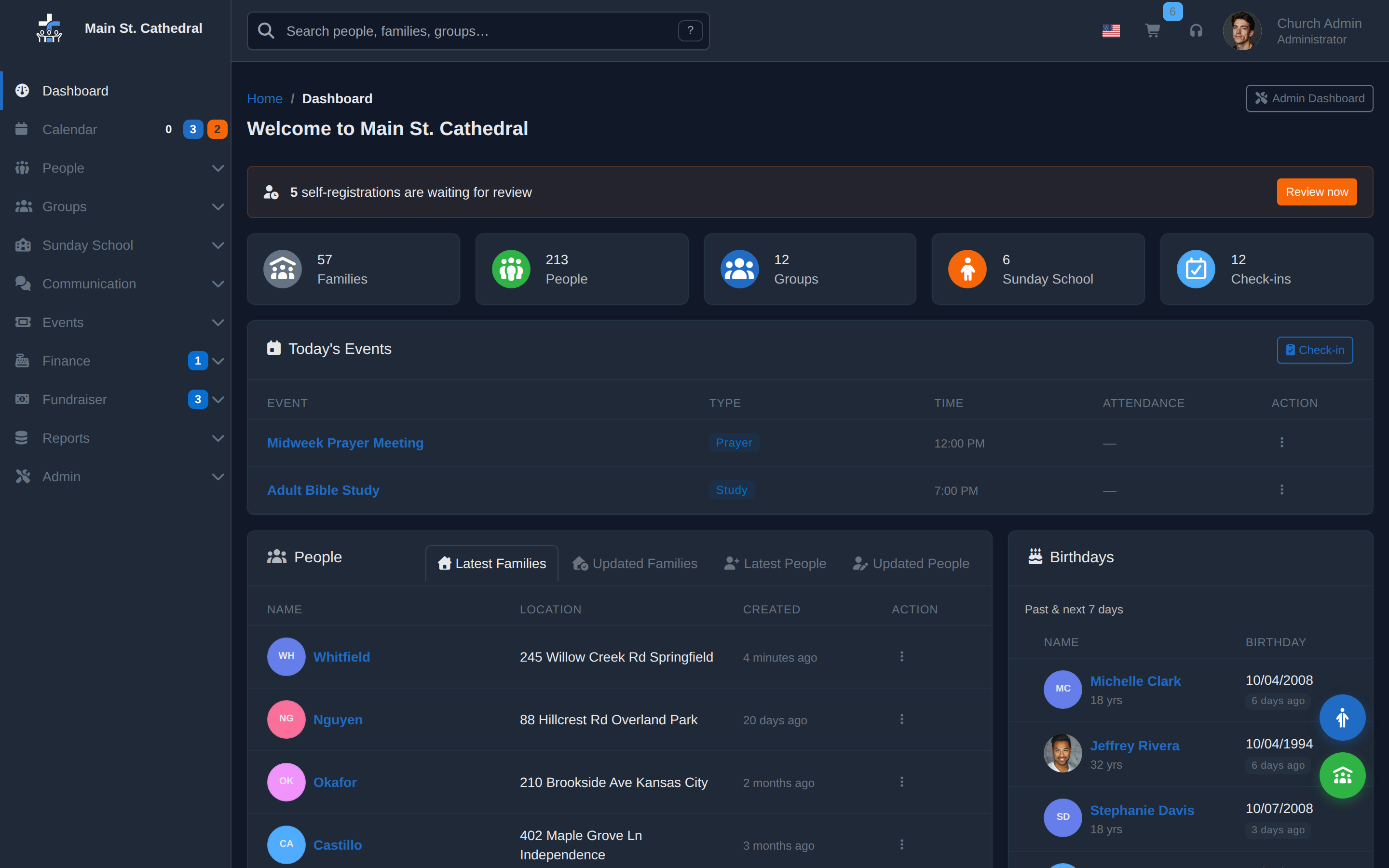
ChurchCRM is installed once and used by many different people — the pastor, the church secretary, the finance director, the children’s ministry coordinator. Each of them uses it differently, works different hours, and has different preferences for how software looks and feels.
ChurchCRM 7.1.2 introduces per-user settings that let each person configure their own experience without affecting anyone else.
My Settings — What’s New
The My Settings page (/v2/user/{id}) was completely redesigned in 7.1.2. It’s now organized into four tabs:
Profile
The basics: name, email address, contact information, and profile photo. Users can upload an avatar that appears in the top navigation bar and on their person record.
Theme
This is where it gets personal. Each user can choose:
- Color scheme: Light mode or dark mode
- Accent color: A selection of color options that adjust the highlight and interactive element colors throughout the interface
Dark mode is entirely per-user. The system default remains light; if a user enables dark mode, only their session switches. The person sitting next to them sees light mode.
Localization
Users on multilingual teams can set their own preferred language, independent of the system-wide default. A church with English-speaking and Spanish-speaking staff members can both use ChurchCRM comfortably in their own language from the same installation.
API Tokens
For users who need to access ChurchCRM data programmatically — integration scripts, reporting tools, custom dashboards — the API tab lets you generate personal access tokens without involving an administrator.
From this tab, you can:
- Generate a new token with a name and optional expiry date
- Copy the token value (shown only once at creation)
- Revoke tokens that are no longer needed
Tokens are passed in the x-api-key header and respect the same role-based permissions as the user’s regular account. A user with read-only access cannot use their token to write data.
React Removed
One technical note worth mentioning: ChurchCRM 7.1.2 completed the removal of React from the frontend. The old user settings page was one of the last remaining React components. The redesigned page uses standard PHP templates and vanilla JavaScript — consistent with the rest of the modern MVC pages in ChurchCRM 7.x. This makes the page faster to load, easier to contribute to, and fully translatable.
Getting Started
To access your personal settings:
- Log in to ChurchCRM
- Click your name or avatar in the top navigation bar
- Select My Settings
Changes take effect immediately — no page reload required for theme changes.
For API token documentation and examples, see API Tokens in the admin documentation.