Introducing the Export Hub: All Your Data Exports in One Place
Getting data into ChurchCRM has always been straightforward. Getting it back out — in the exact format you need, reliably, without hunting through menus — took more effort than it should.
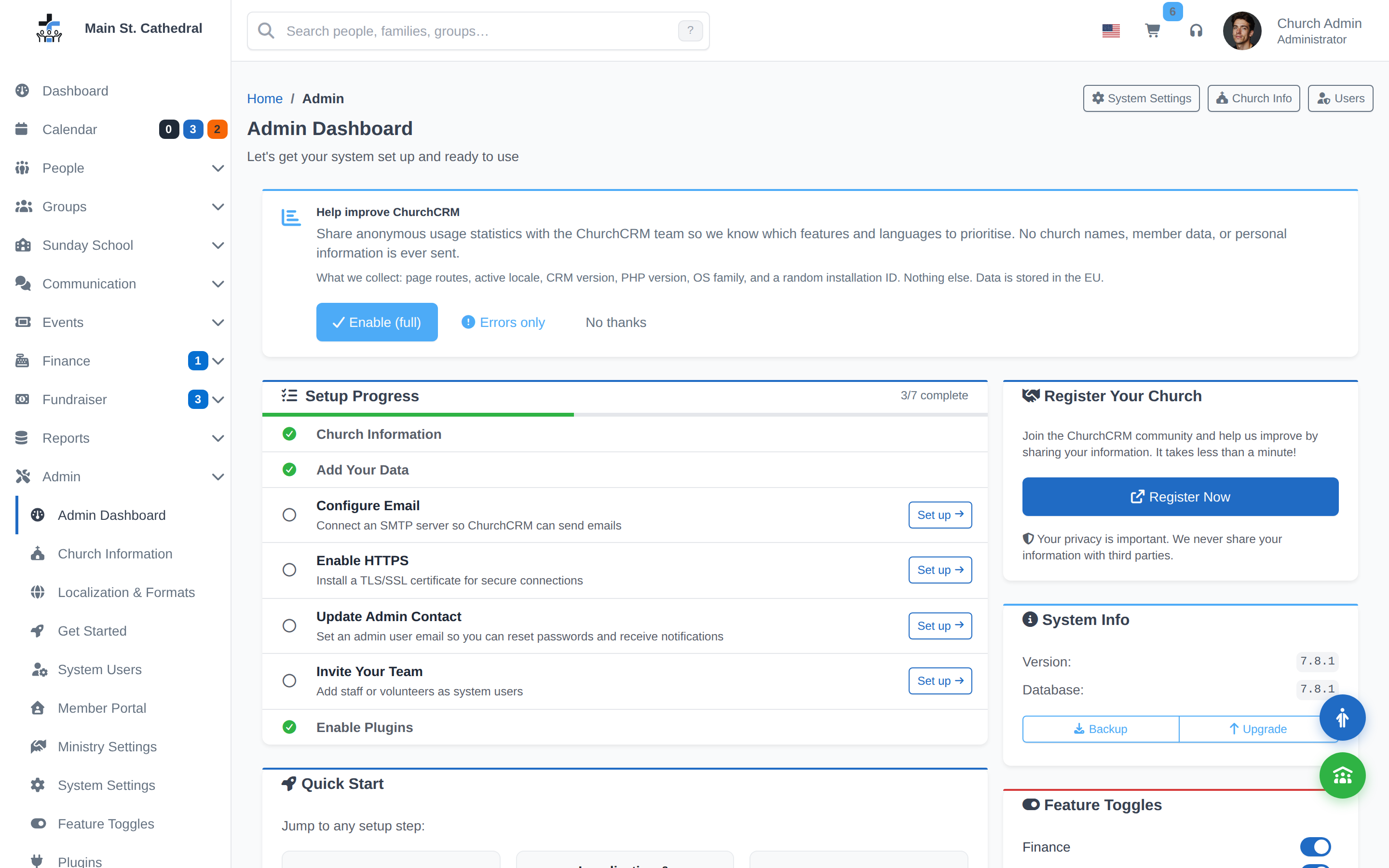
ChurchCRM 7.1.0 fixes that with the Export Hub: a single page at /admin/export where every data export option lives.
What You Can Export
Member CSV
The most common export: a spreadsheet of your congregation with the fields you select. The Export Hub lets you choose exactly which columns to include — name, address, email, phone, classification, family information, custom fields — and downloads a clean CSV ready for mail merge, mailing labels, or import into another system.
From the hub, you can also save a column profile so you don’t have to reconfigure the same export every time.
ChMeetings Export Package
Migrating to or from ChMeetings? The Export Hub generates a formatted export package specifically for ChMeetings import — people, families, groups, and contributions in the format ChMeetings expects. This replaces the need to manually reformat a generic CSV export.
Database Backup
A full SQL dump of your ChurchCRM database, downloadable on demand. This is the backup you want before any upgrade, any major data change, or any time you want a snapshot of your church’s records.
The backup download includes a timestamp in the filename and is compressed for easy storage.
Scheduled Exports
In addition to on-demand downloads, the Export Hub supports scheduled exports. Configure an export to run automatically on a schedule (weekly, monthly, etc.) and have the file stored in a designated directory on your server — or sent as an email attachment.
Scheduled exports mean your off-site backup routine can be automated without requiring someone to log in and click a button.
Download History
Every export you run — on demand or scheduled — appears in the download history. You can see when each export ran, what it contained, and re-download a recent export if needed. History is retained for 90 days by default.
Finding the Export Hub
If you’re an administrator:
- Log in to ChurchCRM
- Go to Admin → Export (or navigate directly to
/admin/export)
The page also links back to the Import page and to the documentation — so data management is consolidated in one part of the admin panel.
For full documentation on export options and column configuration, see Data Export in the user guide.