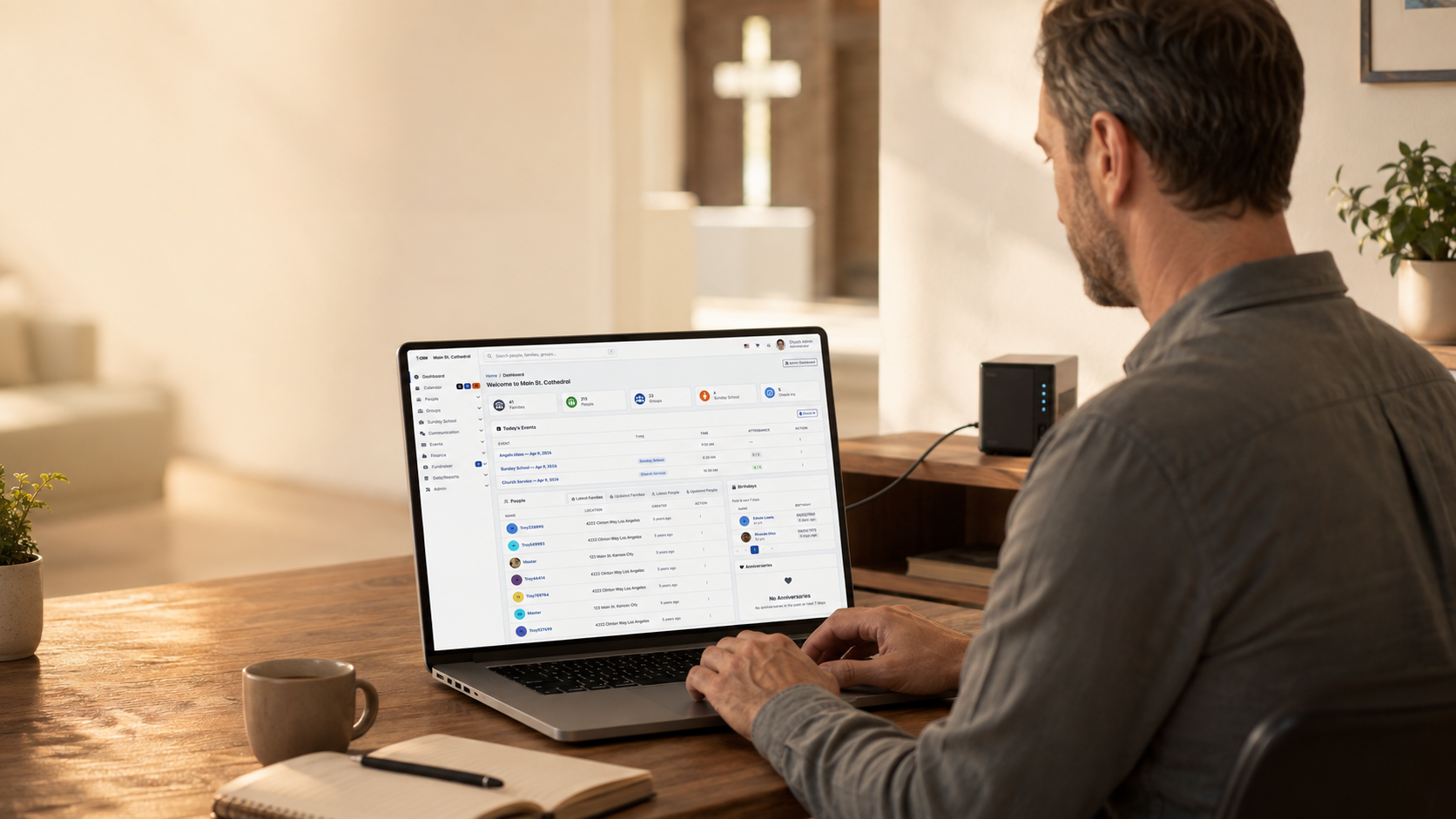
Drei einfache Schritte Wählen Sie die Installationsmethode, die am besten zu Ihrem Hosting-Setup passt

Live-Produktdemo von ChurchCRM Offizielle ChurchCRM-Installationsdokumentation

Softaculous Auto-Installer vs Manuelle cPanel-Installation vs Direkter Download von GitHub

1

Softaculous Auto-Installer

Ein-Klick-Installation bei vielen Hostern mit cPanel verfügbar

Mehr erfahren →
2

Manuelle cPanel-Installation

Schritt-für-Schritt-Anleitung mit dem cPanel-Dateimanager und MySQL-Werkzeugen

Mehr erfahren →
3

Direkter Download von GitHub

Vollständige Installation per FTP oder Befehlszeile

Mehr erfahren →

Systemanforderungen

Systemanforderungen

  • PHP-Version: 8.4+ (required for v7.0.0+)
  • Datenbank: 8.0.11+ or MariaDB 10.5+
  • Webserver: 2.4+ with mod_rewrite
  • Memory: 256MB minimum (512MB+ recommended)
  • Execution Time: 30+ seconds minimum
  • Speicherplatz: Minimum 500MB available

PHP Extensions

  • php-bcmath, php-curl, php-exif, php-gd
  • php-gettext, php-intl, php-json, php-mbstring
  • php-mysqli, php-soap, php-sodium, php-xml, php-zip

Most hosting providers include these by default

Database User Permissions

The database user must have these permissions:

  • CREATE: To create tables and indexes
  • ALTER: To modify table structures during updates
  • SELECT, INSERT, UPDATE, DELETE: To read and write data
  • EXECUTE: To run stored procedures
  • CREATE VIEW: To create database views

Tip: In cPanel, selecting ALL PRIVILEGES grants all permissions.

Methode 1: Softaculous Ein-Klick-Installation / Methode 2: Manuelle cPanel-Installation / Methode 3: Direkte Installation von GitHub

Methode 1: Softaculous Ein-Klick-Installation

Recommended if available - Easiest and fastest!

Melden Sie sich in Ihrem Hosting-Kontrollpanel (cPanel) an
  1. Log into your cPanel account
  2. Look for Softaculous or Application Installer in Software section
  3. If you see it, Softaculous is installed!
Den Bereich Softaculous oder "Software installieren" aufrufen
  1. Click on Softaculous in cPanel
  2. In the search box, type ChurchCRM
  3. Click on the ChurchCRM icon to view details
Nach ChurchCRM suchen und auf "Installieren" klicken
  1. Click the green Install Now button
  2. You'll see the installation form
Den Anweisungen folgen, um die Installation abzuschließen
  • Installation URL: Select your primary domain
  • Directory: Leave blank for root, or enter subdirectory name
  • Admin Username: Create a secure username
  • Admin Password: Create a strong password
  • Admin Email: Enter the admin email
  • Site Name: Enter your church name
  1. Click Install button
  2. Softaculous handles everything automatically
  3. Installation completes in 2-5 minutes
  4. Log in with your credentials
That's it! Softaculous automates everything. No technical knowledge required!

Methode 2: Manuelle cPanel-Installation

If Softaculous isn't available, follow these manual steps.

Eine MySQL-Datenbank über cPanel MySQL-Datenbanken anlegen
  1. In cPanel, find and click "MySQL Databases"
  2. Create a new database (e.g., churchcrm_db)
  3. Create a new MySQL user with a strong password
  4. Add the user to the database with ALL PRIVILEGES
  5. Note your database name, username, and password
ChurchCRM von GitHub herunterladen
  1. Download from GitHub Releases
  2. Unzip the file on your computer
  3. Get files ready to upload
Dateien per Dateimanager oder FTP hochladen
  1. In cPanel, click "File Manager"
  2. Navigate to public_html directory
  3. Upload all ChurchCRM files
  4. Set file permissions to 644 (files) and 755 (folders)
Installations-URL aufrufen und dem Einrichtungsassistenten folgen
  1. Open your browser and go to your ChurchCRM URL
  2. The installation wizard will load automatically
  3. Enter your database information
  4. Create your admin account
  5. Complete the wizard
Benötigen Sie weitere Hilfe? Sehen Sie in die GitHub-Dokumentation.

Methode 3: Direkte Installation von GitHub

For any web hosting with PHP and MySQL.

Von GitHub klonen oder herunterladen: https://github.com/ChurchCRM/CRM
  1. Go to ChurchCRM Releases
  2. Download the latest zip file
  3. Unzip on your computer
Eine MySQL-Datenbank auf Ihrem Server anlegen
  1. Use your hosting control panel to create a MySQL database and user
  2. Note the database name, username, and password
Dateien per FTP oder SFTP auf Ihren Webserver hochladen
  1. Connect via FTP or use your hosting's file manager
  2. Upload files to web root (public_html, www, or httpdocs)
  3. Set file permissions: files to 644, folders to 755
Den Installer unter Ihrer Installations-URL ausführen
  1. Visit your ChurchCRM URL in a browser
  2. The setup wizard will appear
  3. Enter your database credentials
  4. Complete the configuration
Vollständige Dokumentation im GitHub-Wiki

Hilfe benötigt?

Dokumentation

Umfassende Anleitungen und Fehlerbehebung

Dokumentation ansehen

Community

Kontakt mit anderen Kirchen

Community fragen

Kontakt

Kontaktieren Sie uns für direkte Hilfe

Support kontaktieren

Bereit zur Installation?

Die meisten Kirchen nutzen Softaculous oder manuelle cPanel-Installation. Beide bieten volle Kontrolle und Integration mit bestehendem Hosting.

Möchten Sie es zuerst sehen? Live-Demo ausprobieren · Funktionen erkunden